Screenshots made for pasting into a chat.
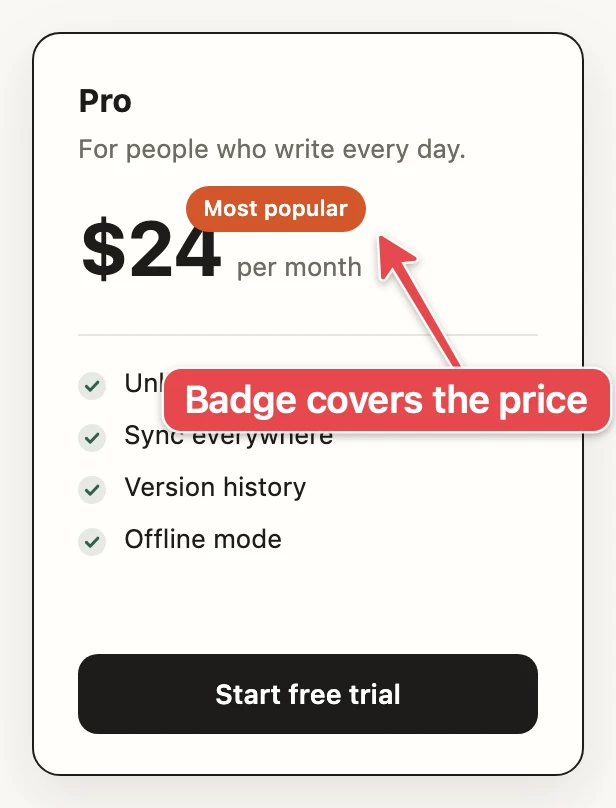
Drag over the part that's broken and it's already on your clipboard, ready for Claude or Cursor. If it needs a pointer, draw an arrow on it first.
$ curl -fsSL https://github.com/keshav-exe/shotput/releases/latest/download/install.sh | bash- 1. Capture
- 2. Annotate
- 3. Paste
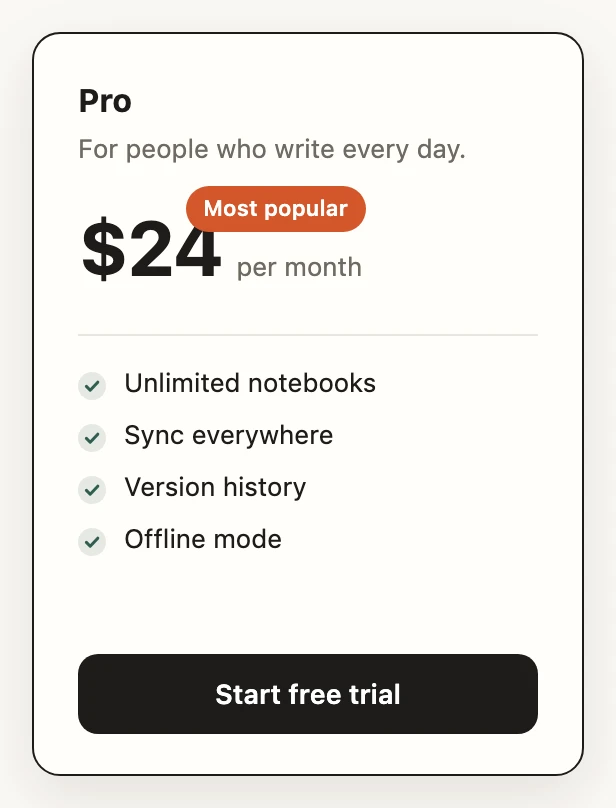
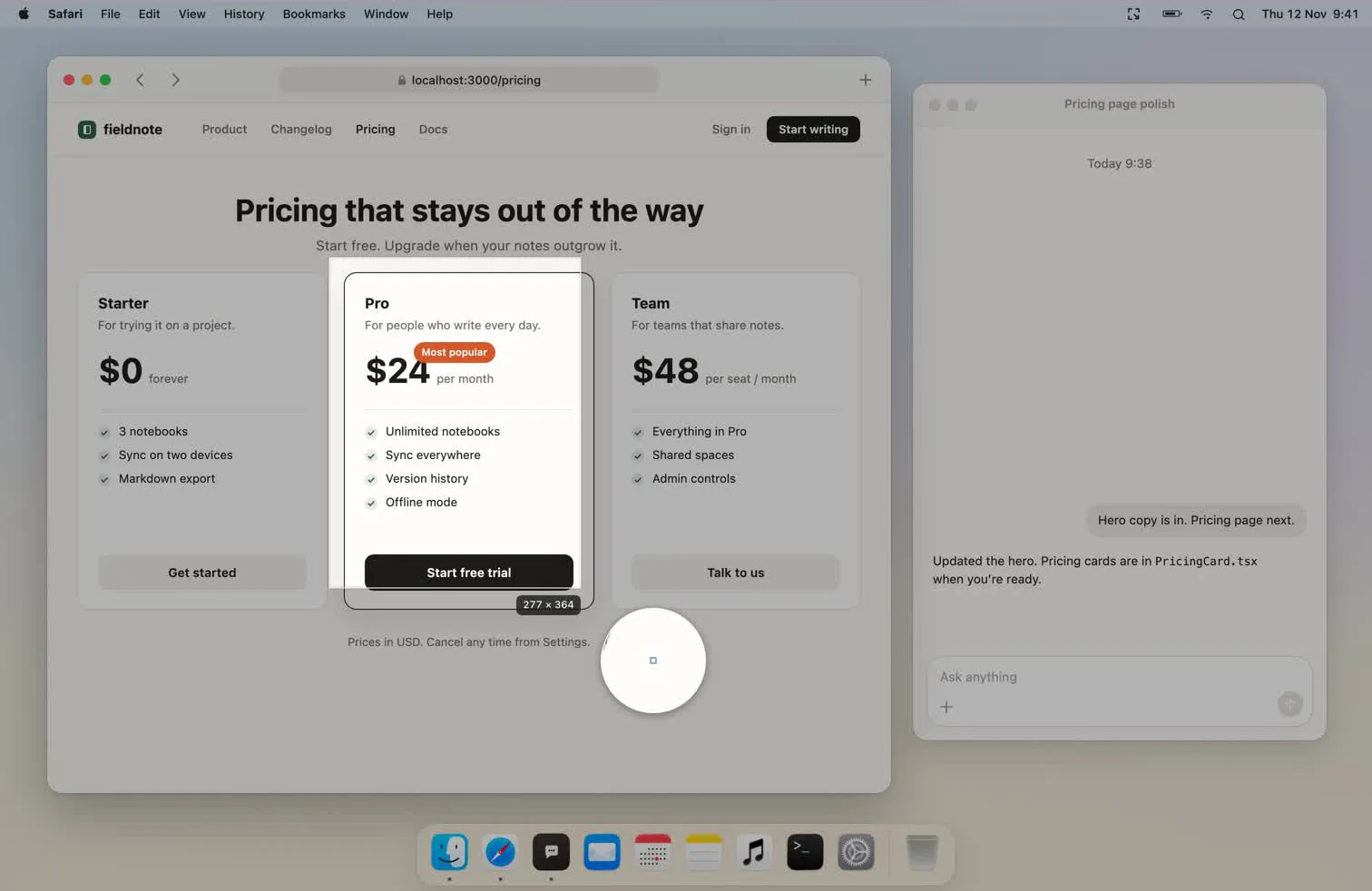
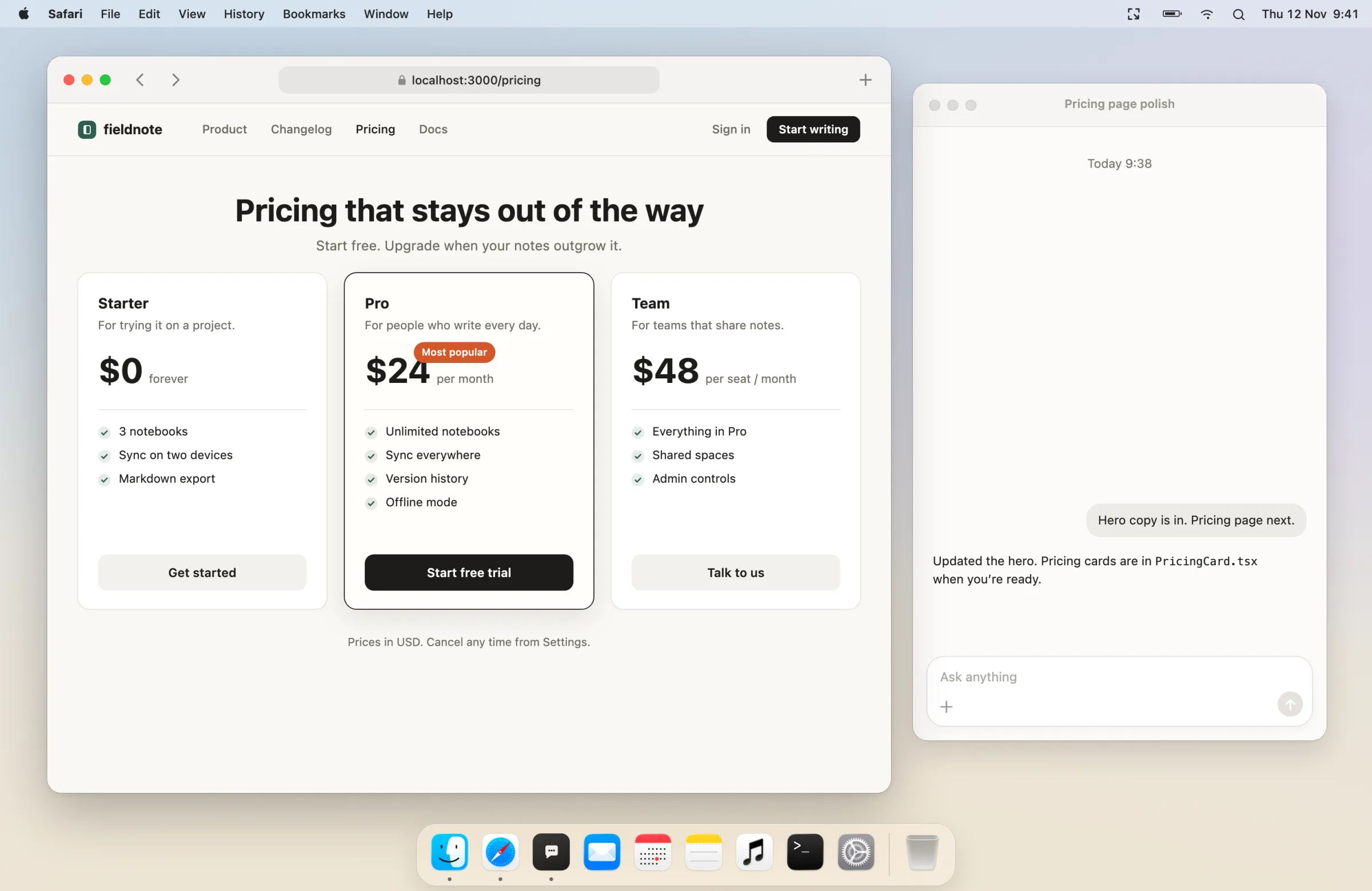
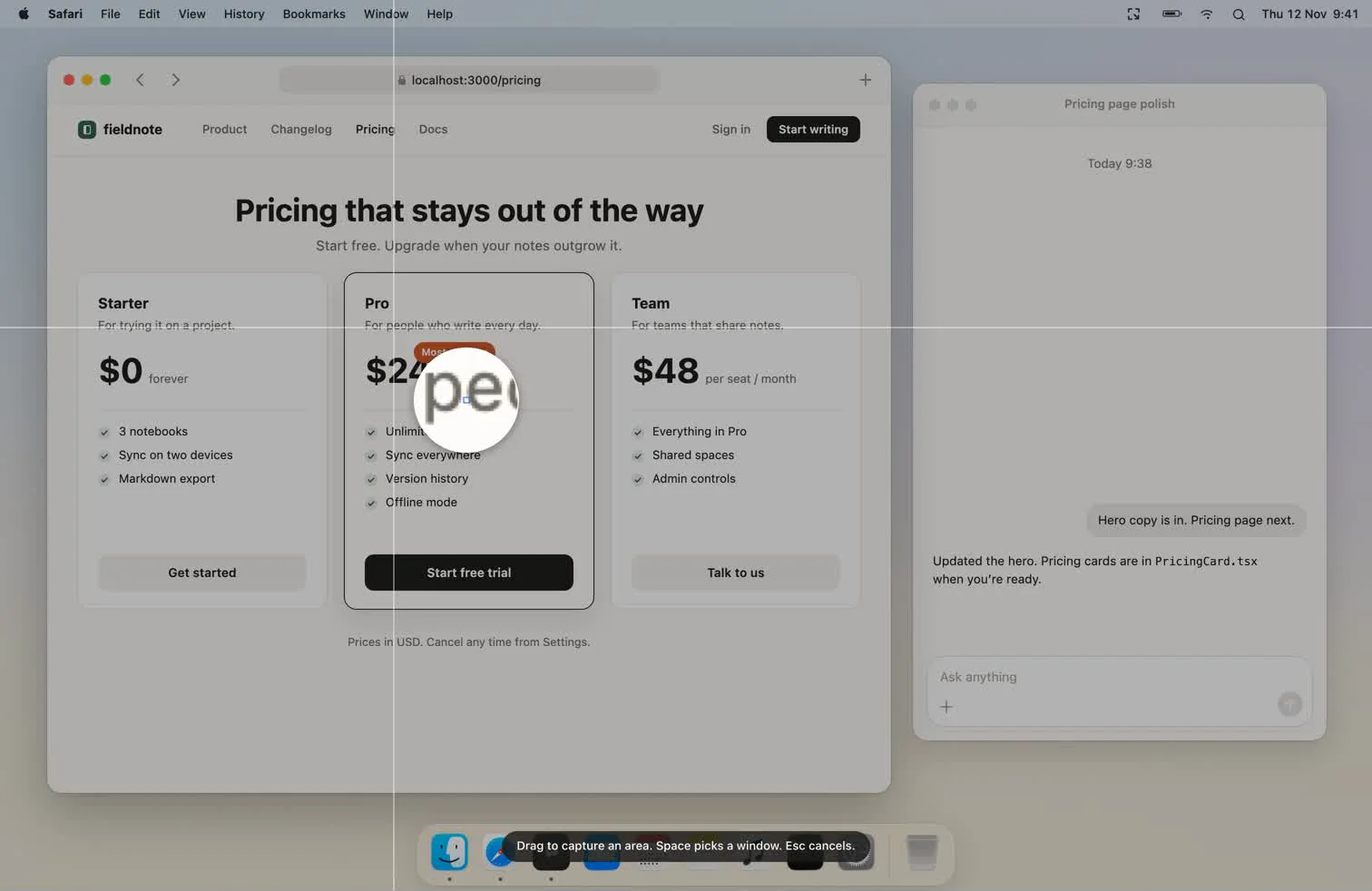
Drag across the Pro card. It's on the clipboard when you let go.
⇧⌘4 makes a file you'll never open again.
Most screenshots now go into a chat with Claude or Cursor and that's the end of them. The built-in tool still saves each one to the Desktop, and the Desktop fills up.
- A file every time
- Each capture becomes a PNG named down to the second. You drag it into the chat, and it stays on the Desktop until you clean up.
- Copying costs you the markup
- Holding Control as well puts it on the clipboard, but then there's no thumbnail, so there's nothing to draw an arrow on.
37 items on the Desktop
Keep pressing ⇧⌘4.
Your fingers already know the macOS keys, so Shotput can sit behind them. Pick how far it goes. Either way you can undo it in Settings.
- Hand over the keys
- Capture screen, Capture area, and Capture area and annotate move onto ⇧⌘3, ⇧⌘4 and ⇧⌘5. Settings opens the macOS page where you switch the old shortcuts off.
- Or keep them and get the preview
- Leave macOS on its keys and turn on Preview macOS screenshots. Each new shot gets Shotput's preview and goes on the clipboard, and macOS's own thumbnail steps aside.
Shotput answers ⇧⌘3, ⇧⌘4 and ⇧⌘5.
It's on the clipboard when you let go.
No thumbnail to wait for and no file to find. Let go, switch apps, paste.
- Snaps to edges
- The crosshair catches window edges, the menu bar, and the Dock, and the guides turn blue when it does. Hold ⌘ to place it freely.
- Windows on their own
- Press Space for window mode. The window under the pointer lights up, and you get just that window with clean corners.
- Adjust mid-drag
- Hold Space to move the selection or ⇧ to keep it square. Esc backs out, and so does a right click.
A preview that stays out of your way.
It shows up in the corner nearest your pointer, away from what you captured, and never takes focus. Your typing keeps going where it was going.
Screenshot.pngAnnotate- Click it
- The editor opens right where you captured.
- Drag it
- It drops into any app as a file.
- Drag it up
- A shelf opens under the menu bar icon. Drop it there to pin it.
- Leave it
- It goes away after a few seconds. You can set how long, or turn it off.
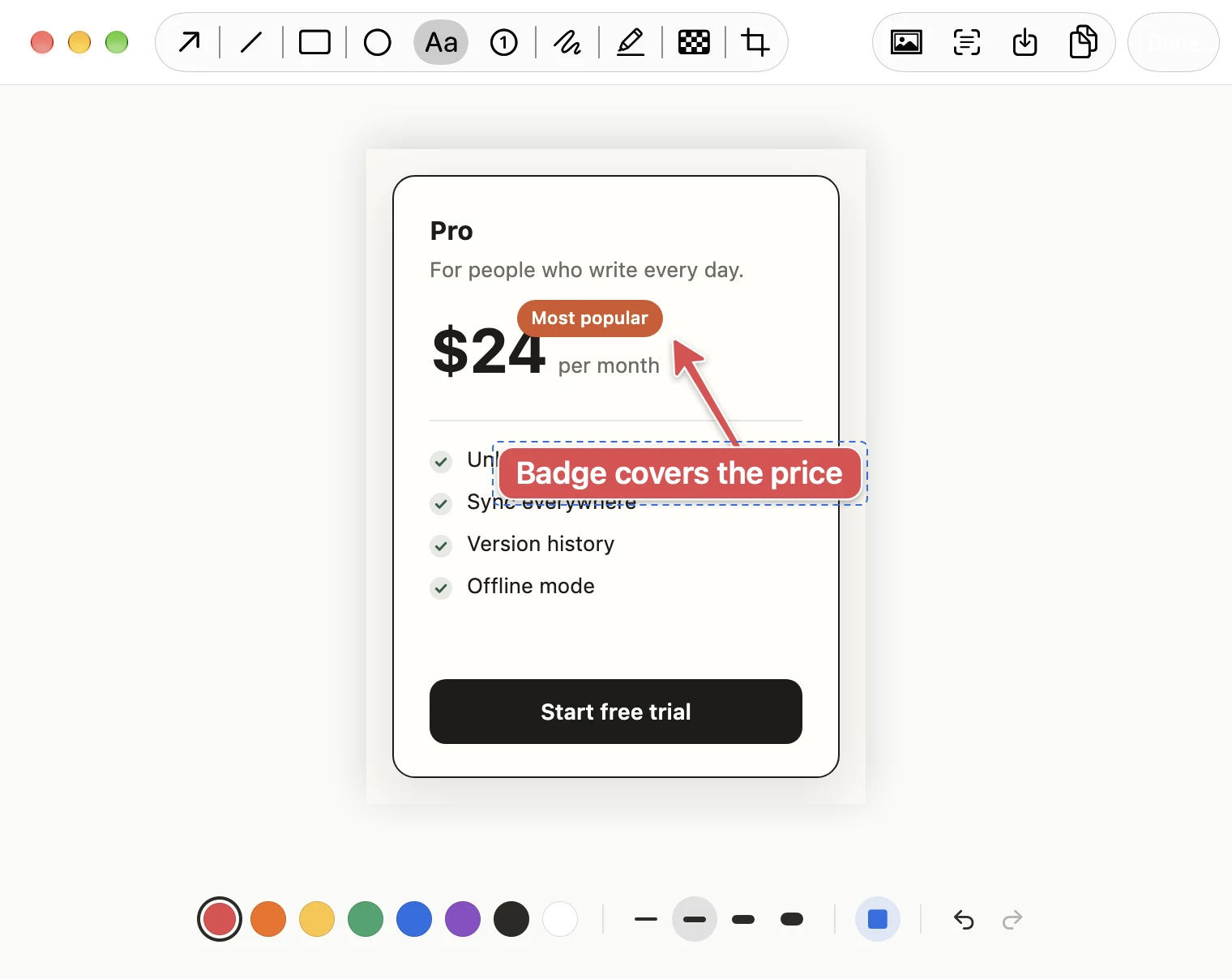
Draw on it before you send it.
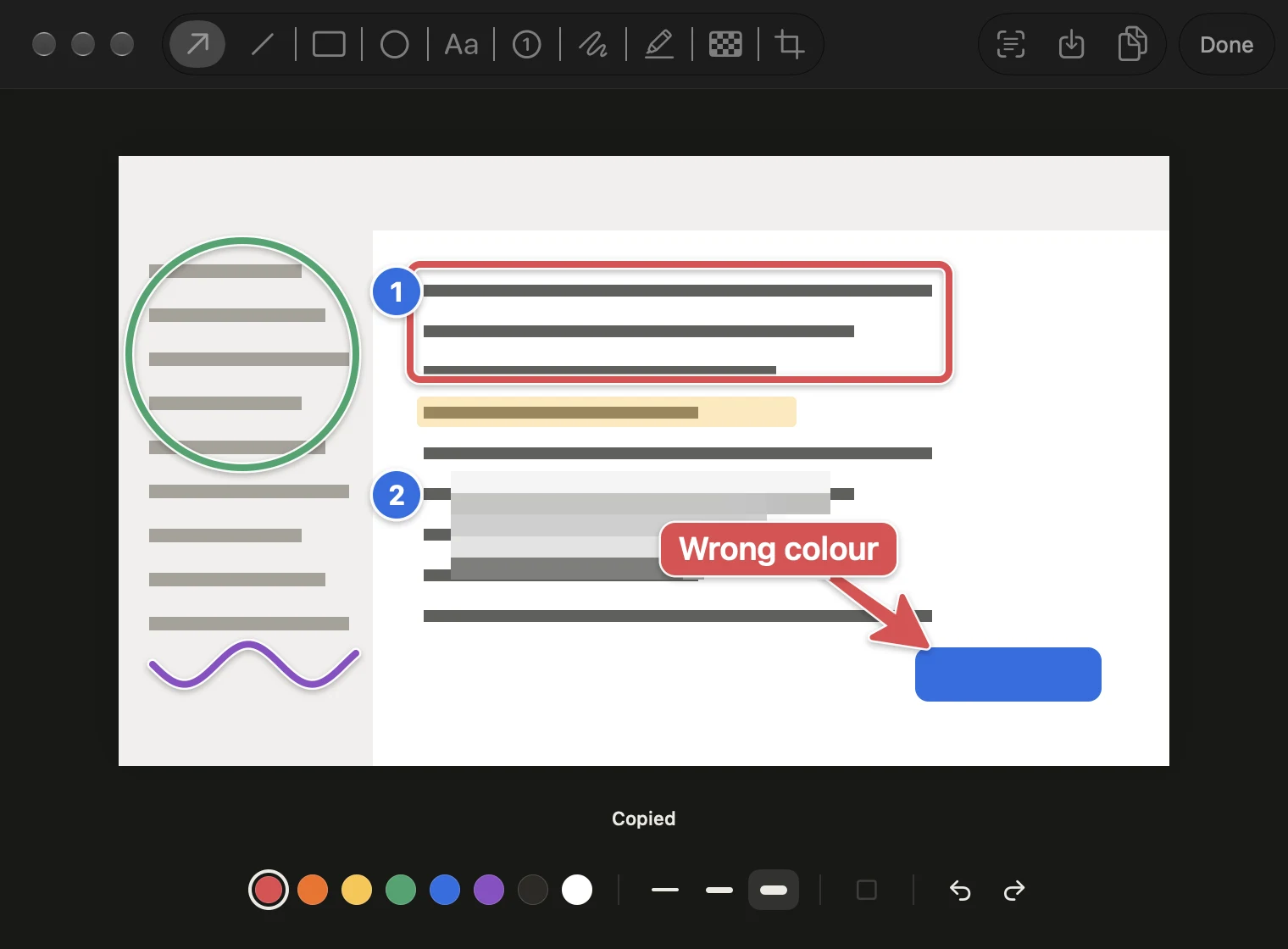
An arrow at the bug beats a paragraph about where the bug is. Each tool has a key, the number keys pick a colour, and Return copies the result.
⌃⌥⌘D captures and opens the editor in one go. Marks stay editable until you copy, so you can drag, reshape, or nudge them with the arrow keys.
- ArrowA
- Shift snaps to 45°. Drag the middle handle to curve it.
- LineL
- Curve it from the middle, double-click to straighten.
- RectangleR
- Shift for a square. Fill tints the inside.
- EllipseO
- Shift for a circle.
- TextT
- Return finishes, Shift-Return adds a line.
- Step numberN
- Click to drop 1, then 2, then 3.
- PenP
- Sketch a shape and it snaps to a clean one.
- HighlighterH
- Tints a line of text without hiding it.
- RedactB
- Mosaic by default, or a solid block.
- CropC
- Trim the capture after the fact.
Readable on anything
Every mark gets a thin white outline and a soft shadow, so a red arrow still shows up on a red button.
Wobbly circles come out round
Draw a rough circle with the pen and it becomes an ellipse. Lines, arrows, and rectangles work the same way, and ⌘Z brings your sketch back.
A background for docs
When a capture is headed for a doc or a post instead of a chat, Background sets it on your wallpaper with padding, rounded corners, and a shadow.
Pin the ones you paste twice.
The design you keep comparing against, or the error you're about to show a second agent. Pinned captures wait in the menu bar.
- Drag up to pin
- Drag a preview toward the menu bar and a shelf opens under the Shotput icon. Drop it there, or use the pin button on the preview.
- Your last fifteen
- The menu bar icon opens a strip of recent pins. Click one to copy it, Option-click to edit it, or drag it into an app.
- Several at once
- ⌘-click or ⇧-click pins, or press Select, then copy, drag, or unpin them together. Copy puts each one on the clipboard as its own image.
Pins
Put it on a mouse button.
The shortcuts are ordinary system-wide hotkeys, so Logi Options+ can send them from a button. Press the same button mid-selection and it cancels.
- 1
In Logi Options+, pick your mouse, then the button.
- 2
Choose Keyboard shortcut from the list of actions.
- 3
Press the Shotput shortcut you want on it.
- One button, five captures
- Logitech's gesture button has a click plus four directions, enough for every capture shortcut.
- Links for launchers
- Raycast, Alfred, and Smart Actions can open
shotput://area,shotput://annotate, and the others.
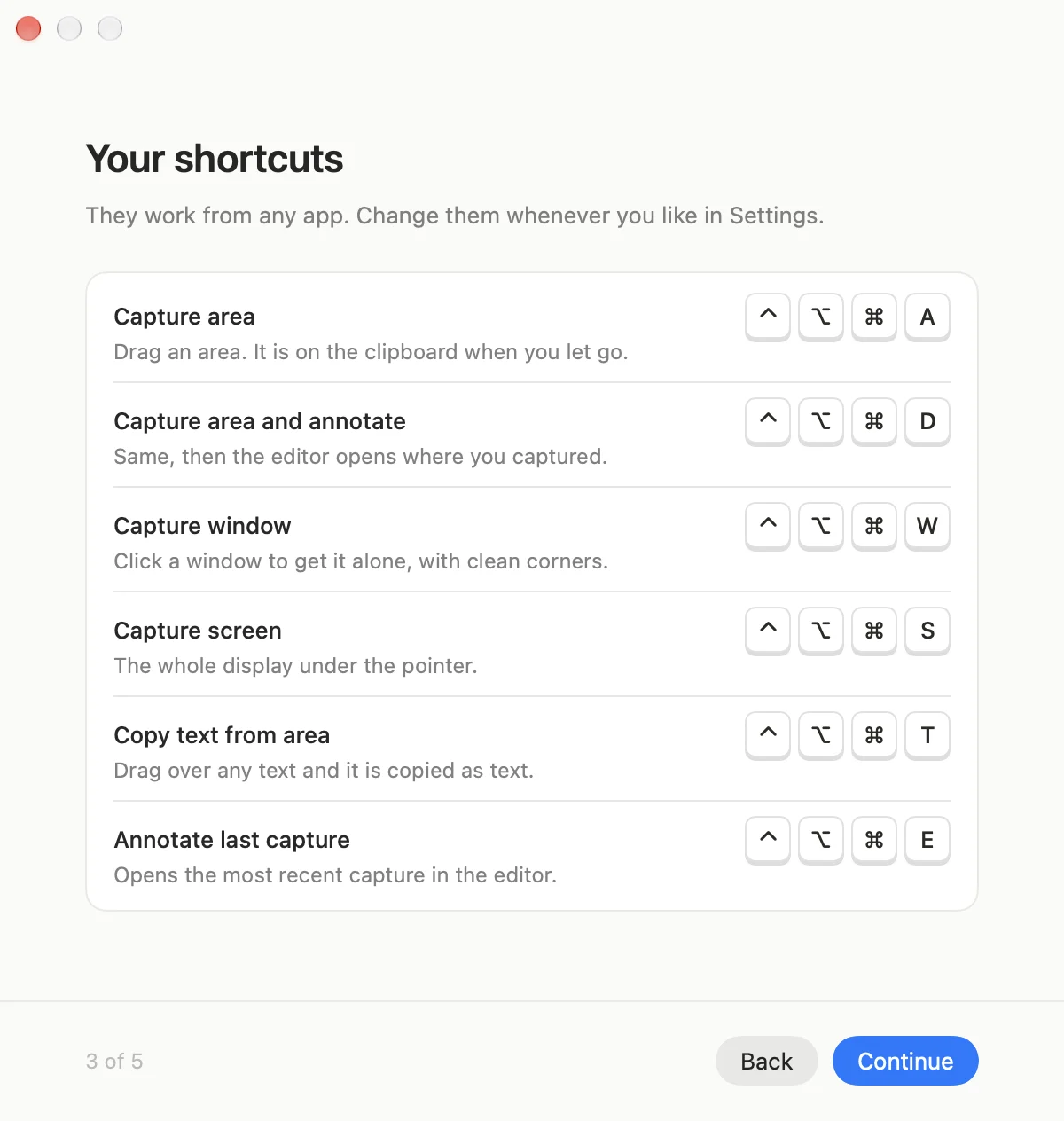
| Action | Default shortcut |
|---|---|
| Capture areaDrag an area. It's on the clipboard when you let go. | ⌃⌥⌘A |
| Capture area and annotateSame, then the editor opens where you captured. | ⌃⌥⌘D |
| Capture windowClick a window. You get it alone, with clean corners. | ⌃⌥⌘W |
| Capture screenThe display under the pointer. | ⌃⌥⌘S |
| Annotate last captureOpens the most recent capture in the editor. | ⌃⌥⌘E |
| Copy text from areaDrag over text and it's copied as text, read on your Mac. | ⌃⌥⌘T |
| Repeat last areaCaptures the same area again, with no selection. | Set your own |
| Annotate clipboard imageOpens the image on the clipboard in the editor. | Set your own |
The smaller things.
$ pnpm build
Type error: Property 'badge'
does not exist on type 'Plan'.
at PricingCard.tsx:42:18
✓Copied as text. Type error: Property 'badge' does not exist on type 'Plan'.
Copy text out of an image
⌃⌥⌘T copies the words inside an area. Handy for an error you can't select, or a line in a video. Recognition runs on your Mac.
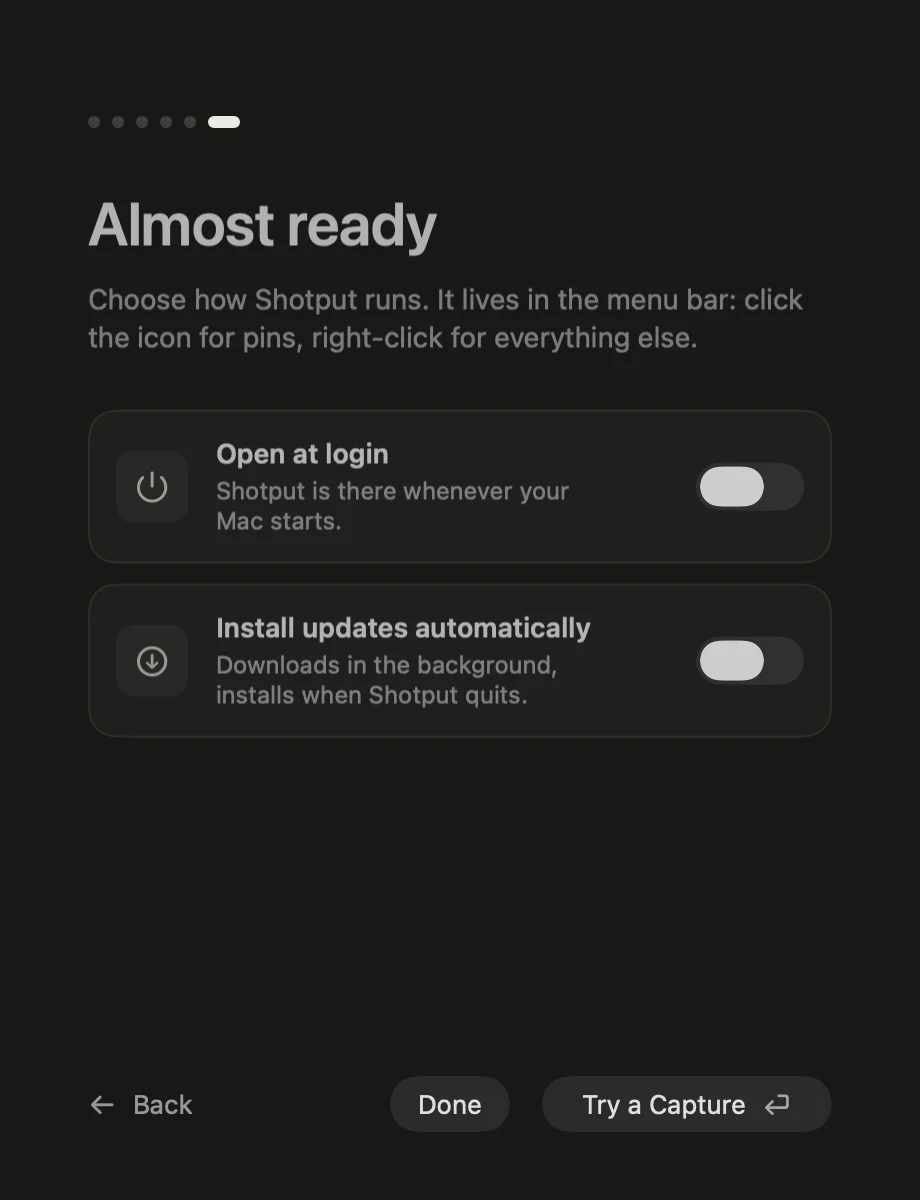
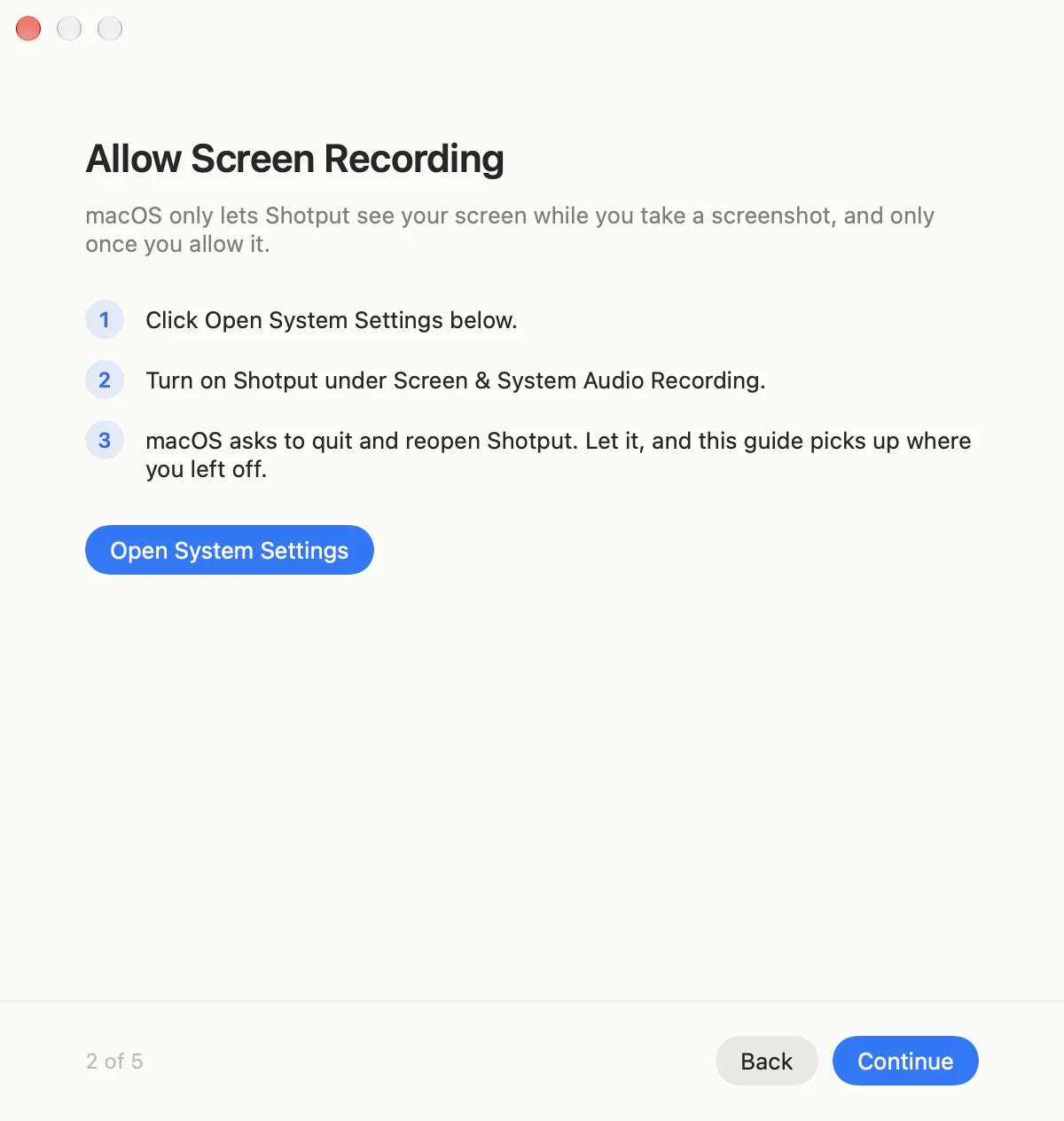
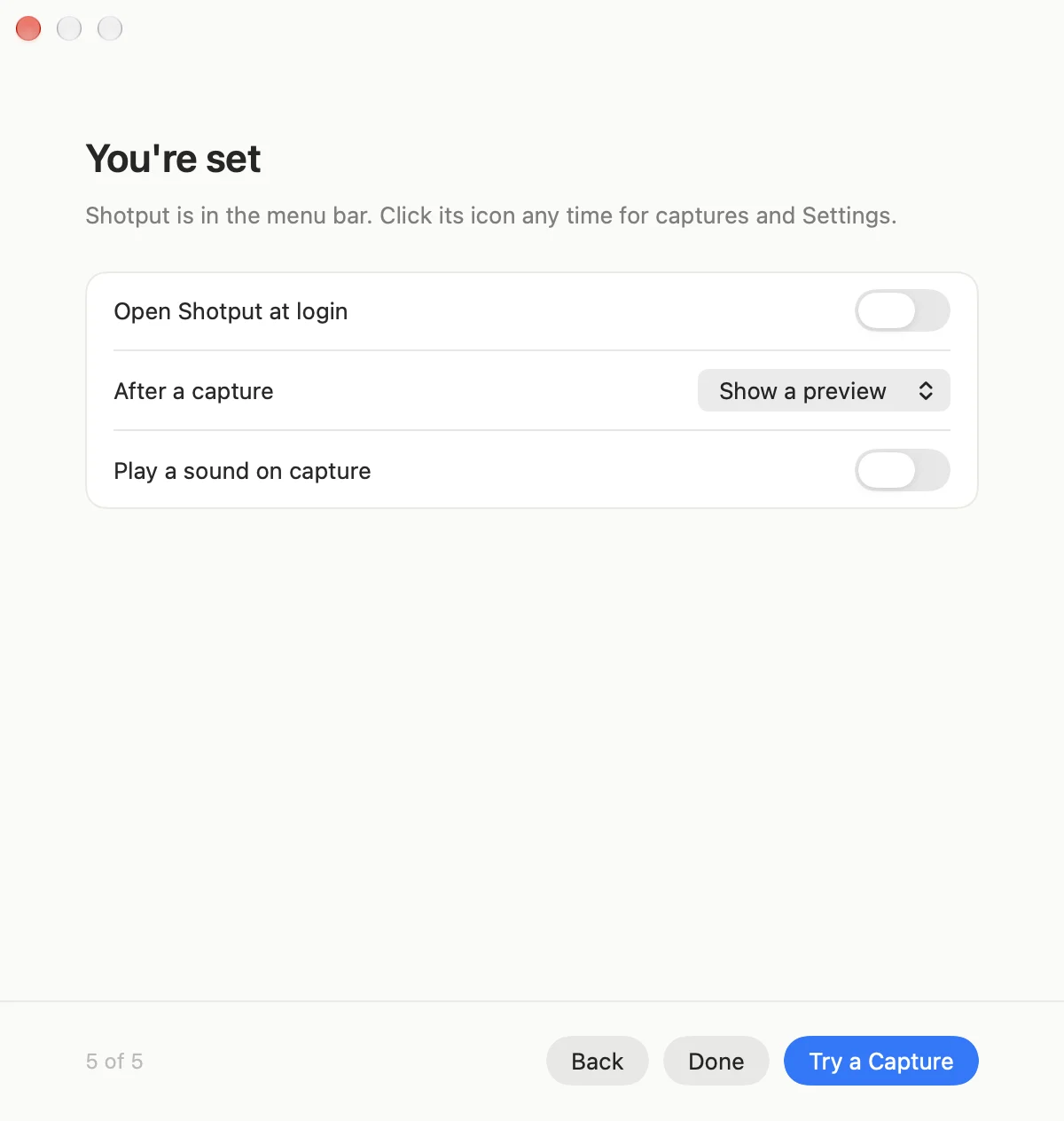
Set up in about a minute
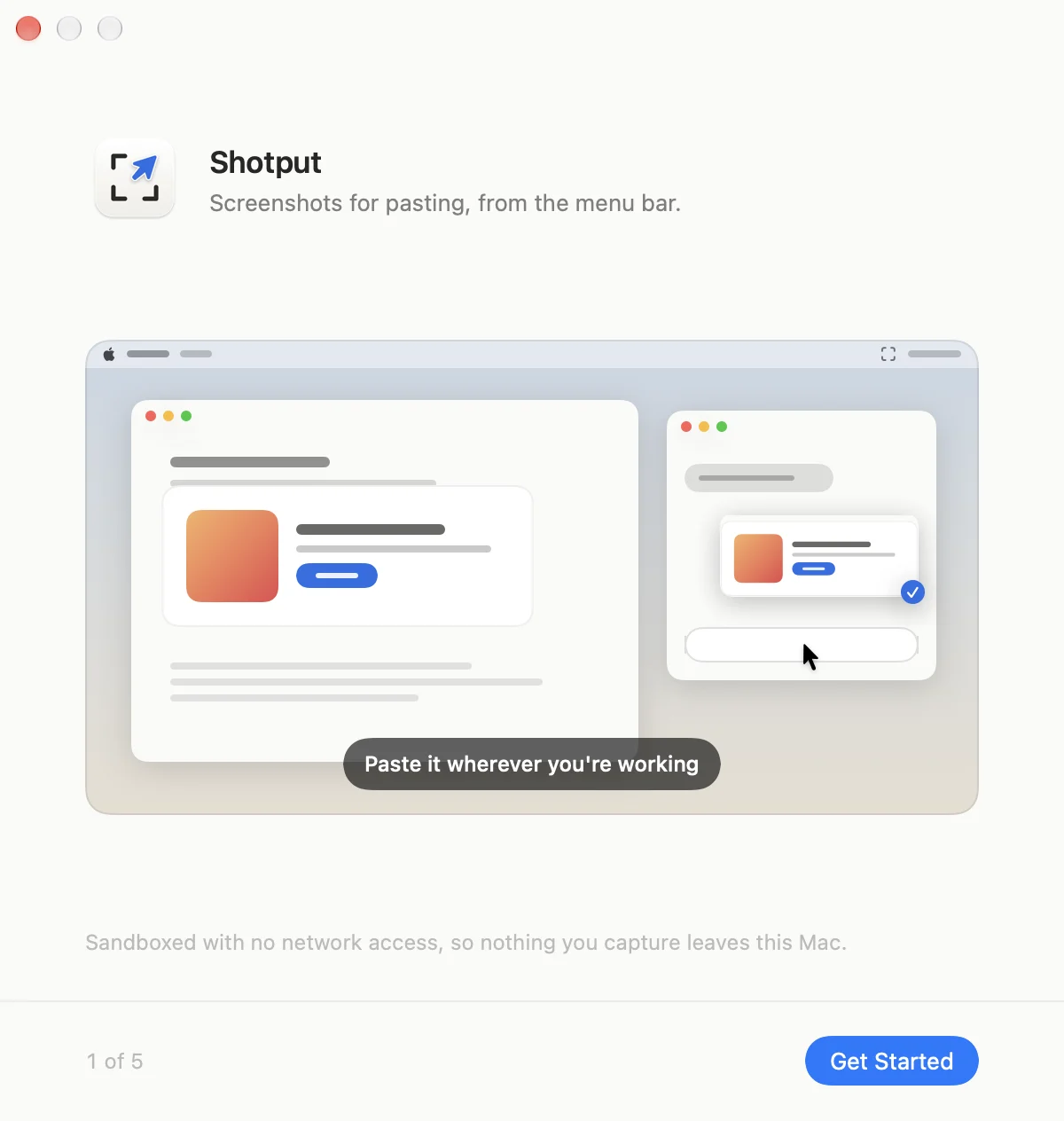
The first launch opens a guide over your wallpaper: Screen Recording, whether Shotput takes over ⇧⌘4, your shortcuts, a mouse button, and updates. Quit halfway and it reopens where you were.
- FormatPNGJPEGHEICQualityFile name%n %Y-%m-%d %H.%M.%SSave every capture
Files, if you want them
Settings can save every capture to a folder as PNG, JPEG, or HEIC, named from a template. Leave it off and nothing touches your disk.
The whole loop in 68 seconds.
Installing, a first capture, an arrow, and a paste into a chat that fixes the bug. The app on screen is the real one, driven by a test harness.
How it compares.
CleanShot X and Shottr do more than Shotput. If you record your screen or capture long pages, use one of them. Shotput is for the quick screenshot you paste into a chat, and it's free.
| Feature | macOS | CleanShot X | Shottr | Shotput |
|---|---|---|---|---|
| Price | Built in | Paid licence | Free to try, paid licence | Free |
| Open source | No | No | No | |
| Annotation editor | ||||
| Blur or pixelate to redact | No | |||
| Copy text from an area | ||||
| Keep captures to reuse | No | |||
| Scrolling capture | No | No | ||
| Screen recording | No | No | ||
| Cloud share links | No | No | No | |
| No network access at all | Not applicable | No | No |
Your screen stays on your Mac.
The app doesn't have the network entitlement, so the macOS sandbox wouldn't let it send a capture anywhere even if it tried. Updates arrive through a separate helper that can only download signed releases.
- Requires
- macOS 26 or later, Apple silicon or Intel
- Size
- A 4.7 MB app, signed and notarized by Apple
- Network
- None. The app has no network entitlement, so the sandbox blocks it
- Updates
- Sparkle's separate helper fetches the release feed from GitHub and installs only builds signed with the project's key
- Writes
- Only to a folder you choose, or wherever you save from the editor
- Reads
- Where macOS saves screenshots, and whether macOS still owns ⇧⌘3 to ⇧⌘5. The screenshot folder only after you allow it
- When idle
- No CPU, about 15 MB of memory. The hotkeys are event driven
- Built with
- Swift, AppKit, and ScreenCaptureKit. Sparkle is the one dependency
- Licence
- MIT
Free and open source.
One line in Terminal, or the DMG. Both are signed and notarized by Apple, and Shotput keeps itself up to date after that.

Shotput 0.3.1
For macOS 26 or later
Free
- Every feature and every update
- Signed and notarized by Apple
- Source on GitHub under the MIT licence
- No account and no telemetry
From Terminal
Downloads the latest release and checks its checksum, developer team, and notarization before anything reaches Applications. Run it again to update.
$ curl -fsSL https://github.com/keshav-exe/shotput/releases/latest/download/install.sh | bashOr the DMG
Open Shotput-0.3.1.dmg and drag Shotput to Applications. It opens like any other app, and from then on it can update itself.
Or build it
With Xcode's command line tools. The script builds, signs, and installs it.
$ git clone https://github.com/keshav-exe/shotput.git && cd shotput && ./Scripts/build.sh --installQuestions
Is it really free?
Yes. Shotput is MIT licensed and the source is on GitHub. There's no paid tier and no account.
Which apps can I paste into?
Anything that takes a pasted image: Claude, ChatGPT, Cursor, Codex, a terminal agent that accepts images, Slack, Linear, a GitHub comment. The capture is an ordinary image on the clipboard.
Can it replace ⇧⌘4?
Yes. Settings, then Shortcuts, then Use ⇧⌘3, ⇧⌘4 and ⇧⌘5 moves Shotput's captures onto those keys, and a button opens the macOS page where you turn the old shortcuts off. Turning it off again puts your old keys back. If you'd rather keep macOS on its keys, Preview macOS screenshots gives each of its shots Shotput's preview instead.
Does anything I capture leave my Mac?
No. The app is sandboxed without the network entitlement, so macOS itself stops it sending anything. Updates come through Sparkle's separate helper, which only downloads the signed release feed. Text recognition runs on your Mac.
Where do captures go?
To the clipboard. If you want files too, Settings, then Output, saves every capture to a folder you choose, as PNG, JPEG, or HEIC, with a name template like %n %Y-%m-%d %H.%M.%S.
Can I keep using my mouse's gesture button?
That's what it's built for. The shortcuts are ordinary system-wide hotkeys, so Logi Options+ and other mouse utilities can send them. A gesture button covers five actions, and pressing a capture shortcut again while selecting backs out.
Can other apps trigger it?
Launchers and Smart Actions can open links like shotput://area or shotput://annotate. Links only start captures that put a selection on screen; a silent full-screen capture is shortcut only. Turn links off in Settings, then General.
Which Macs does it run on?
macOS 26 or later, on Apple silicon and Intel. The app is 4.7 MB, and idle it uses no CPU and about 15 MB of memory.
How do I update?
Shotput checks for updates and can install them on its own (About, then Install updates automatically). Updates come through Sparkle and install only if they're signed with the project's key. Running the install command again works too. Every release is on the changelog.
How do I uninstall it?
Drag it from Applications to the Trash, or run the install command with bash -s -- --uninstall on the end. Your settings and pins stay unless you delete them too.
I found a bug.
Open an issue on GitHub, or email hi@kshv.me. A screenshot helps, and you know a good tool for that.